

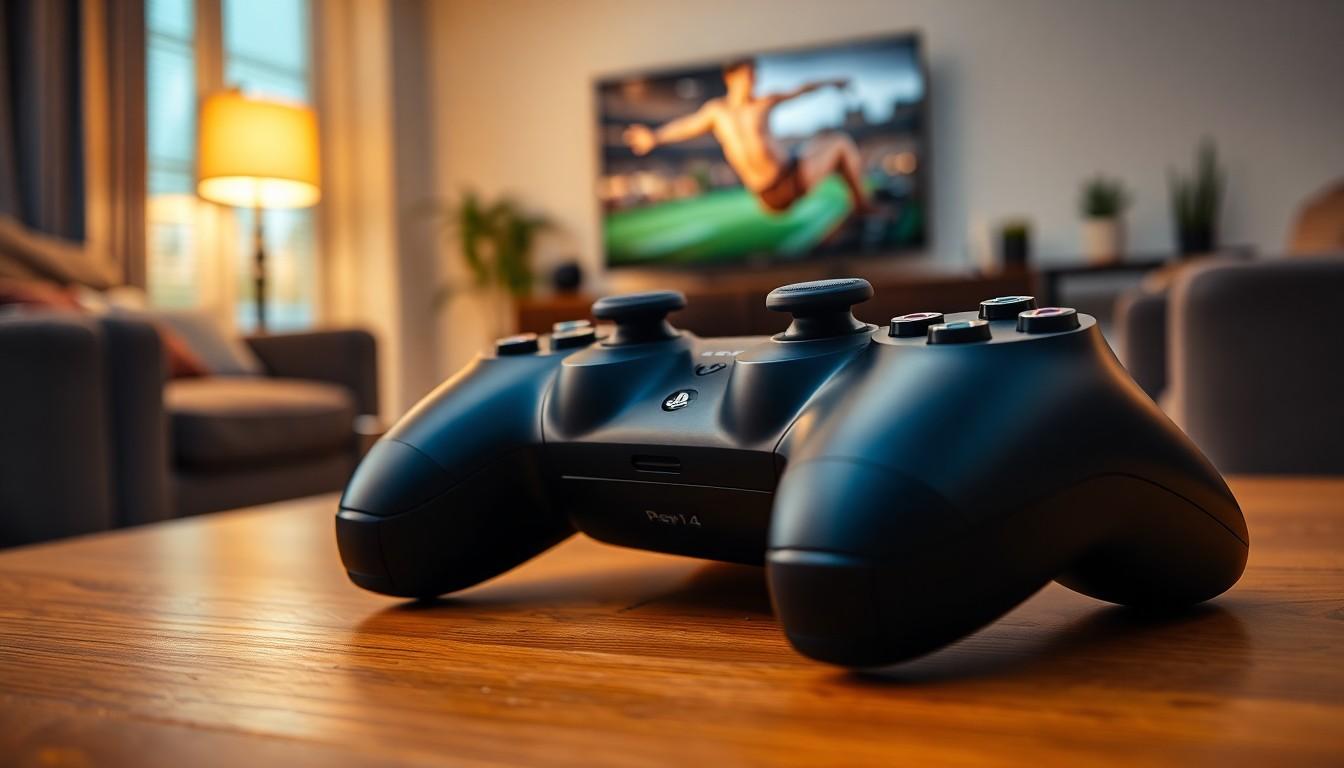
When the PlayStation 4 controller decides to throw a tantrum, it can feel like a scene straight out of a comedy sketch. One minute you’re dominating in your favorite game, and the next, your controller’s acting like it’s auditioning for a role in a horror film. Fear not, because resetting that rebellious little device is easier than finding a hidden treasure in your gaming library.
Understanding Playstation 4 Controllers
PlayStation 4 controllers are essential for a smooth gaming experience. When issues arise, knowing how to reset the controller becomes crucial.
Common Issues Requiring a Reset
Controller connectivity problems often prompt gamers to reset. Input lag can disrupt gameplay, making a reset necessary. Sudden disconnections from the console frequently occur, requiring immediate action. Stuck buttons may lead to frustration, pushing users to find a solution. Finally, unresponsive controls can halt progress in games, signaling the need for a reset.
Benefits of Resetting Your Controller
Resetting a controller restores lost settings, improving performance. It often resolves connection issues, ensuring a stable link with the console. A simple reset can fix input lag, enhancing responsiveness during gameplay. Controllers show renewed functionality after a reset, leading to a smoother gaming experience. Gamers often find that minor glitches disappear, making gameplay more enjoyable overall.
How to Reset a Playstation 4 Controller

Resetting a PlayStation 4 controller can effectively resolve various issues, such as connectivity problems and input lag. Follow these steps for a smooth reset process.
Step-by-Step Guide
- Turn off the PlayStation 4 console to prepare for the reset.
- Locate the small reset button on the back of the controller.
- Use a paperclip or a similar tool to press the reset button for about five seconds.
- After the controller resets, reconnect it to the console using a USB cable.
- Finally, power on the console while holding the PS button on the controller.
Completion of these steps restarts the controller and often resolves minor glitches.
Alternative Reset Methods
Connecting the controller via USB can also refresh its settings. Plugging in the controller to the console offers a straightforward way to restore its functionality. Another method to consider involves updating the controller’s firmware through the PlayStation settings if issues persist. Navigating to the settings menu allows users to check for updates and install them easily. These alternatives provide additional options when the initial reset doesn’t fully resolve problems.
Troubleshooting After Resetting
Resetting the PlayStation 4 controller may not resolve all issues. Specific problems may still arise, requiring additional troubleshooting steps.
Controller Not Connecting
Connection issues can persist despite a successful reset. If the controller fails to connect to the console, try reconnecting it via USB. Ensure the USB cable is functional and securely attached to both the controller and console. Additionally, confirm the console’s Bluetooth settings recognize the controller. Restarting the console can also help refresh the connection. In some cases, updating the system software may resolve connectivity problems. Check for any pending updates that might enhance the overall experience.
Persistent Issues
Persistent issues may indicate deeper problems with the controller. If resetting does not eliminate glitches, consider checking the controller’s battery level. A low battery can disrupt performance and connectivity. Inspect the controller for physical damage, especially around buttons and analog sticks. If issues continue, a firmware update may be necessary. Navigate to the PlayStation settings to check for available updates. Consulting PlayStation support or exploring forums can also provide additional insights and solutions for recurring problems.
Tips for Maintaining Your Playstation 4 Controller
Regular maintenance enhances the lifespan of a PlayStation 4 controller. Keeping the controller clean prevents dust and grime buildup. Use a microfiber cloth to gently wipe down the exterior, avoiding liquids that may seep into openings.
Charge the controller properly to maintain battery health. Use the original USB cable to avoid malfunctions. Disconnect the controller when it reaches full charge to prevent overcharging and extend battery longevity.
Store the controller in a cool, dry location, away from direct sunlight. Heat can damage internal components, while moisture can lead to corrosion. A protective case adds extra protection against accidental drops and spills.
Monitor the performance of the buttons and sticks. Sticky buttons or unresponsive joystick movements signify potential issues. Address these problems immediately to improve gaming responsiveness and enjoyment.
Update the controller firmware regularly to enjoy optimal performance. Access firmware updates through the PlayStation settings for improved compatibility with new games. Keeping the controller updated helps prevent connectivity problems.
Test the controller occasionally for responsiveness. Observing any lag or disconnection may indicate the need for maintenance. Performing a reset can often resolve these issues and restore functionality.
By following these tips, gamers can ensure that their PlayStation 4 controller remains in optimal condition, enhancing the overall gaming experience. Consistent care leads to fewer problems and smoother gameplay.
Conclusion
Resetting a PlayStation 4 controller can be a straightforward solution to various gaming frustrations. By following the simple steps outlined, gamers can quickly restore their controller’s functionality and enhance their overall gaming experience. Knowing how to reset the controller not only tackles immediate issues but also empowers players to maintain optimal performance.
Regular maintenance and awareness of potential problems can lead to a longer lifespan for the controller. With these tips in mind, gamers can enjoy uninterrupted gameplay and keep their gaming sessions as enjoyable as possible.


