

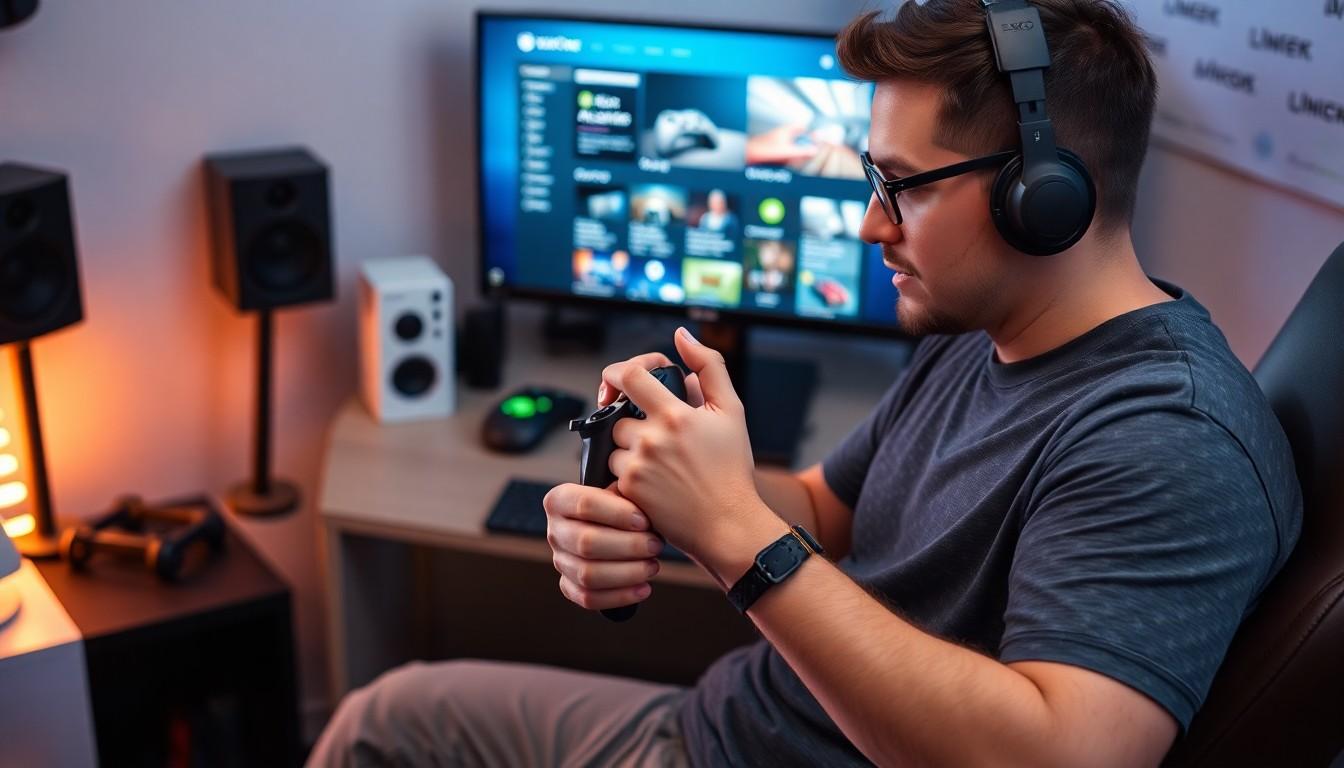
Every gamer knows that a trusty Xbox One controller is the key to victory, but what happens when it starts acting like it’s had one too many energy drinks? Drift, unresponsive buttons, and erratic movements can turn your epic gaming session into a frustrating ordeal. Fear not, because calibrating your controller is easier than finding a hidden treasure in your favorite game!
Understanding Xbox One Controller Calibration
Calibration of an Xbox One controller addresses various issues that impact gameplay. Gamers often experience problems like stick drift or unresponsive buttons. Signal drift occurs when the controller’s analog sticks register movement even when they remain still. An incorrectly configured controller leads to erratic movements during gameplay.
Calibration ensures the controller accurately interprets input. This process fine-tunes the controller settings, enhancing responsiveness. He or she can achieve a smoother gaming experience by adjusting for any discrepancies in sensitivity. Calibration involves mapping the controller’s buttons and sticks, aligning the hardware with software.
To begin, access the Xbox Accessories app through the Xbox One dashboard. The app provides options for controller customization and calibration features. Adjust settings by selecting the desired controller profile and navigating to the calibration option. Follow the on-screen instructions to perform calibration for stick and button inputs.
Many gamers overlook the importance of regular calibration. With regular calibration, the likelihood of encountering issues decreases significantly. Game performance can be optimized through this maintenance step, preventing distractions caused by technical glitches.
Calibration enhances the precision of an Xbox One controller. By routinely checking and adjusting settings, gamers ensure their controller functions at its best. Prioritizing calibration leads to a more enjoyable, uninterrupted gaming session.
Preparing for Calibration

Calibration requires specific tools and software. Ensuring everything is ready will streamline the process and enhance accuracy.
Required Tools and Software
Gamers must have a Windows PC or Xbox console to calibrate the Xbox One controller. The Xbox Accessories app is essential for customization and calibration. This app, available on Windows 10 or later, allows users to access various settings. USB cables are also beneficial for connecting the controller directly, improving communication during the calibration. A stable internet connection supports app updates as well. Ensuring all items are handy simplifies the calibration process and enhances gaming experiences.
Checking for Updates
Keeping the controller updated proves crucial for optimal performance. Users can check for updates through the Xbox Accessories app, which offers options for firmware updates. An up-to-date controller performs better and minimizes issues like drift or unresponsive buttons. Regularly checking for updates ensures users benefit from enhancements and fixes. Gamers may also find system updates for their consoles play a significant role in integrating controller features and functionality, making it essential to verify both controller and console are running the latest software.
Step-by-Step Calibration Process
Calibrating the Xbox One controller enhances gameplay and minimizes issues like drift. Here’s how to do it effectively.
Connecting Your Controller
Start by connecting the controller to your Xbox console or Windows PC. Use a USB cable for a stable connection. If using a wireless controller, make sure it’s synced with the console. Check the controller’s battery level to ensure it won’t lose power during calibration. A reliable connection supports accurate calibration and prevents interruptions.
Accessing Calibration Settings
Launch the Xbox Accessories app on your console or PC. This app provides the necessary tools for calibration. Navigate to the controller settings once the app opens. Look for options related to device configuration or calibration. Access the calibration settings to begin the fine-tuning process, which adjusts how the controller responds to inputs.
Adjusting Sensitivity and Dead Zones
Adjust the sensitivity settings to customize how responsive the controller is during gameplay. Explore different sensitivity levels for various types of games. Modify the dead zones to determine how far the thumbsticks must move before input registers. Smaller dead zones benefit precision gaming, while larger dead zones can help with less sensitive controls. Test different settings to find the optimal balance for personal gaming preferences.
Troubleshooting Common Issues
Gamers may encounter issues even after calibrating their Xbox One controller. Identifying these problems is essential for maintaining optimal performance.
Calibration Not Working
Calibration might not function correctly for various reasons. Checking USB connections can help. A loose connection may disrupt communication between the controller and the device. Additionally, ensuring the Xbox Accessories app is updated to the latest version is critical. If calibration persists in failing, restarting the console or PC often resolves temporary glitches. Reviewing dead zone and sensitivity settings in the app can aid fine-tuning for responsiveness. If issues continue, gamers may consider performing a factory reset on the controller, restoring original settings to enhance functionality.
Unresponsive Controller
An unresponsive controller can frustrate users during gameplay. Start by checking the battery level; low power can cause unresponsiveness. Connecting the controller directly to the console or PC can provide a more reliable connection than wireless methods. If problems continue, removing any potential interference from other devices is essential. Signal obstructions, like physical barriers, may disrupt the wireless signal. For ongoing issues, restoring the controller by conducting a hard reset often resolves various glitches that cause unresponsiveness. Regular maintenance and calibration directly contribute to extending the controller’s lifespan and ensuring a seamless gaming experience.
Conclusion
Calibrating an Xbox One controller is essential for maintaining optimal performance and enhancing the gaming experience. By following the outlined steps and regularly checking for updates, gamers can ensure their controllers respond accurately and minimize issues like drift and unresponsiveness.
Taking the time to calibrate not only improves gameplay but also extends the controller’s lifespan. With the right tools and knowledge, anyone can tackle calibration confidently. Embracing this simple process allows gamers to focus on what truly matters—enjoying their favorite games without interruptions.


